2026 Best WiFi Band for Cameras 2.4GHz or 5GHz?

Time:2026-09-25 Author:Isabella
0%

A camera’s Wi-Fi band can decide whether a live view opens smoothly or buffers as you check the driveway. The question “What is the difference between 2.4GHz and 5GHz for cameras?” comes down to coverage, interference, and the camera’s own capabilities. Cisco Meraki’s wireless design guidance describes the practical trade-off: 2.4GHz generally reaches farther and handles obstacles better, while 5GHz can offer faster connections over shorter distances. Neither band guarantees a reliable feed by itself.

The Wi-Fi Alliance’s technical guidance also highlights the importance of matching devices and networks to their supported Wi-Fi bands. For a camera on a detached garage wall, 2.4GHz may maintain a steadier connection through walls. A camera near the router may benefit from 5GHz, especially when nearby networks crowd the 2.4GHz band. But range depends on the building, router placement, and interference. There is no universal distance that fits every home.

Wireless strategist Chuck Lukaszewski’s general design principle, paraphrased rather than presented as a verbatim quotation, is to plan Wi-Fi around real client needs and the environment. That matters here: a speed test beside the router may not reflect the signal at the camera. Check the product specifications, test the intended mounting spot, and leave room for imperfect results. A small placement change can matter more than the band label.
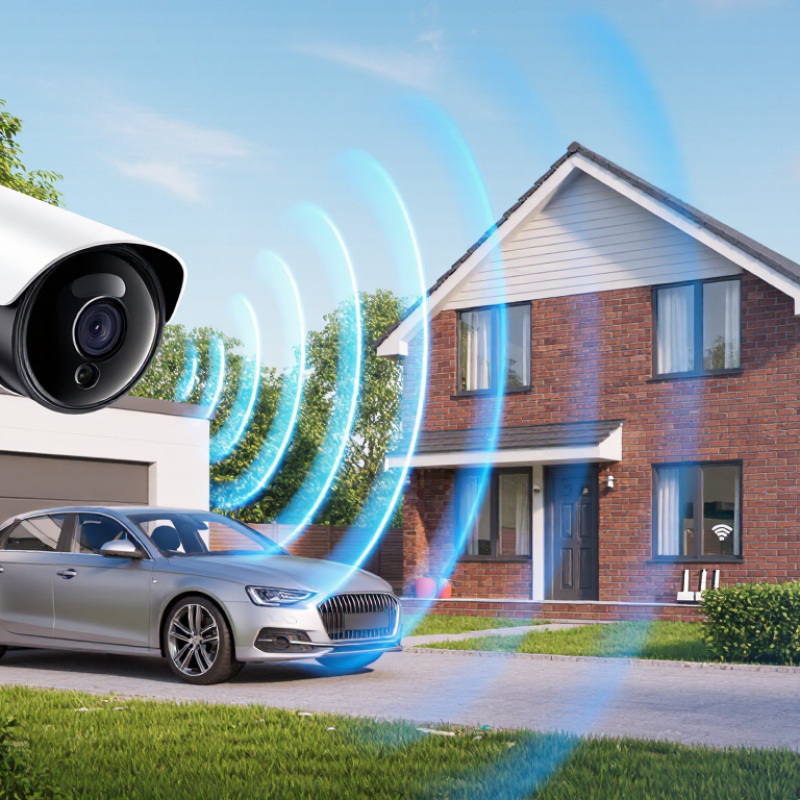
2026 Best WiFi Band for Cameras 2.4GHz or 5GHz?

Understanding the Differences Between 2.4GHz and 5GHz WiFi

Wi-Fi bands are not simply slow and fast options; they balance coverage, capacity, and interference. The 2.4GHz band usually reaches farther and handles walls better, helping cameras placed in garages or rooms far from routers. Its signal may share crowded airwaves with neighboring networks and household devices, causing delayed alerts or uneven live video. The 5GHz band can carry data faster and may face less congestion, which can benefit high-resolution video streams. Yet walls matter. Its range often drops sooner across distance and solid barriers.

Camera performance depends on more than the band name. If both your router and camera support both bands, compare them from the camera’s installed position, not beside the router. A clear signal indicator helps, but actual playback and recorded clips tell you more. Check video during a busy evening, when nearby networks may be active. One speed test is imperfect evidence; it can miss congestion that appears later. Test both. A camera sending basic motion clips may work reliably on 2.4GHz, while a distant camera may struggle on 5GHz despite its higher potential speed. Choose the band that delivers steady footage and alerts where the camera is mounted.

How Range and Obstacles Affect Camera Connections

For a camera connection, the best WiFi band depends on the path between the router and camera. A 2.4GHz signal usually travels farther and passes through walls better than 5GHz. That can help when a camera sits in a garage or at the far end of a hallway. The trade-off is that 2.4GHz can be crowded, which may cause delays or unstable video. 5GHz can offer faster data nearby, but its signal often weakens more quickly across distance and solid materials. Faster is not always better.

Obstacles matter as much as distance. Brick, concrete, metal doors, and foil-backed insulation can weaken either band; several walls may cause more trouble than a few extra metres of open space. Even a fridge or a large cabinet can change the signal path. A phone showing strong WiFi beside the router does not prove the camera will receive a stable connection outdoors. Check the signal where the camera will actually be mounted, with doors closed and the usual household devices running.

A practical test is to temporarily place the camera at the intended spot and stream live video for several minutes. Watch for pauses, delayed alerts, or repeated reconnecting. If the connection struggles, try 2.4GHz, move the router or camera, or reduce the obstacles between them. Small changes can help. Still, signal readings are imperfect, and a setup that works on a quiet afternoon may falter when nearby networks are busy.

Comparing Speed, Stability, and Device Capacity

2026 Best WiFi Band for Cameras 2.4GHz or 5GHz?

For security cameras, speed matters, but a steady connection matters more. The 2.4 GHz band generally reaches farther and passes through walls better than 5 GHz. That can help a camera mounted outside a brick wall or at the end of a hallway. The trade-off is congestion: neighboring routers, smart devices, and even some household electronics share this band. A live view may load slowly. Annoying, but common.

The 5 GHz band usually offers more bandwidth and less interference, making it a better fit for high-resolution video near the router. Its shorter reach can become a problem across floors or several walls. The Wi-Fi Alliance’s Wi-Fi 6 technical overview reports up to four times the capacity of Wi-Fi 5 in dense environments. That improvement comes from Wi-Fi 6 features, not from choosing 5 GHz alone. Camera count, router capability, and airtime use still matter.

Test the actual mounting spot. Stream video while someone walks through the area, then check for pauses or missed motion alerts. A porch camera two rooms away may perform better on 2.4 GHz, while a nearby indoor camera may benefit from 5 GHz. Measure signal at the camera, not beside the router. And be realistic: neither band fixes a weak internet connection or an overloaded router. The “best” band can change after a door closes.

2026 Best WiFi Band for Cameras 2.4GHz or 5GHz? - Comparing Speed, Stability, and Device Capacity

Comparison 2.4GHz 5GHz What It Means for Cameras
Typical coverage Usually reaches farther indoors and tends to travel through walls better. Usually has less indoor range and loses signal more quickly through walls. 2.4GHz is often the safer choice for distant cameras or cameras separated from the router by walls.
Available throughput Often lower in practice, especially when the band is crowded. Often higher in practice when signal is strong and the router and camera support compatible Wi-Fi features. Neither band has one guaranteed speed; actual throughput depends on signal, interference, Wi-Fi generation, channel width, and network load.
Interference and congestion Commonly shared with other Wi-Fi networks and devices such as Bluetooth equipment. Often offers more channel options, though congestion and interference can still occur. A less congested band can improve video consistency, but a weak signal may outweigh that benefit.
Channel options In many regions, channels 1, 6, and 11 are commonly used as non-overlapping 20MHz channels; permitted channels vary by country. Offers a broader set of channels and channel widths in many regions; availability and restrictions vary by country and equipment. Router settings and local regulations determine which channels are available.
Device capacity Can become congested when many active devices share limited airtime. Can provide more airtime and channel flexibility in some network conditions. There is no universal device-count limit per band. Capacity depends on the access point, signal quality, device activity, and available airtime.
Latency and stability Can be stable at good signal strength, but interference may cause delays or retransmissions. Can deliver responsive, stable connections when the camera is close enough for a strong signal. Neither frequency guarantees lower latency. Signal quality and interference are usually more important than the band alone.
Best camera placement Outdoor cameras, distant rooms, and locations with several intervening walls. Indoor cameras near the router or access point, with few obstacles. Choose based on the camera’s location and measured signal strength, not video resolution alone.
Overall recommendation Best for reach and compatibility when a camera is far from the router. Best for speed and reduced congestion when the camera has a strong signal. For reliable camera video, prioritize a strong, steady connection. Use the band supported by the camera and test its live stream at the installed location.

Note: Wi-Fi performance varies with local regulations, router and camera capabilities, distance, construction materials, interference, and network traffic.

Choosing the Right WiFi Band for Each Camera Location

The best WiFi band depends on where each camera sits, not just how close it looks to the router. A camera above a front door may have a clear path indoors, while one beside a garage wall may face several layers of brick and insulation. In those harder locations, 2.4GHz often holds a connection more reliably because its signal generally travels farther and passes through obstacles better. It can be slower and more crowded, though.

A camera near the router, such as one watching a living room or covered patio, may work well on 5GHz. This band can offer faster data transfer, which helps when viewing detailed live footage. Its signal usually weakens more quickly across walls and floors. Fast on paper; patchy in a corner. A strong connection matters more than choosing the band with the higher speed.

Check the camera’s supported bands, then test WiFi at its exact mounting point before fixing it in place. A phone’s signal bars can offer a rough clue, but they do not guarantee stable video. Watch a live stream during busy household use, and check for pauses or delayed alerts. If the feed stutters near a metal door or at the far end of a garden, try 2.4GHz or adjust the camera position. It is not a perfect rule: nearby networks and building materials can change the result.

Step-by-Step Setup for the Best Camera WiFi Performance

2026 Best WiFi Band for Cameras 2.4GHz or 5GHz?

Step-by-Step Setup for the Best Camera WiFi Performance

Start by checking your camera’s setup guide; some models support only 2.4GHz. This band usually reaches farther through walls, making it useful for cameras near garages or back doors. A 5GHz connection can offer faster data transfer nearby, but its signal often weakens sooner across rooms. Place the camera where it will actually be used, then connect it to the suitable network. Avoid setting it up beside the router and assuming the distant signal will be just as strong.

Tips: Keep the router off the floor and away from metal cabinets. Test it live. Watch the video feed while someone walks through the camera’s view. A smooth preview at the setup desk proves very little.

If the feed stutters, move the router or camera a few feet and test again. Check the router’s connected-device list to confirm the camera joined the intended band. If your router combines both bands under one network name, follow its instructions for connecting devices that need a specific band. Update router and camera software, and use a secure WiFi password. Results can be uneven; thick walls, nearby networks, and even a closed door may change performance. I would trust repeated live tests over a single signal-bar reading.

FAQS

Is 2.4 GHz better for a distant camera?

Often. It usually reaches farther and passes through walls better than 5 GHz. Not always.

When might 5 GHz suit a camera?

It may help a nearby camera stream high-resolution video. Its signal can weaken across floors, brick, or several walls.

Does a strong phone signal near the router prove the camera will connect well?

No. Check the signal where the camera will sit, with doors closed and household devices running.

Which obstacles can weaken a camera’s connection?

Brick, concrete, metal doors, and foil-backed insulation can interfere. Even a fridge or large cabinet may change the signal path.

How can I test the camera’s connection before mounting it?

Place it at the intended spot and stream live video for several minutes. Watch for pauses, delayed alerts, or reconnecting.

What should I do if the video keeps pausing?

Try 2.4 GHz, move the router or camera, or reduce obstacles. Small changes can help.

Can changing Wi-Fi bands fix every connection problem?

No. Neither band can fix weak internet or an overloaded router. A different band may still be worth testing.

Is one successful test enough to trust the connection?

Probably not. A quiet-afternoon test may look fine, then nearby networks get busy. I would check again later.

Conclusion

Choosing between 2.4GHz and 5GHz WiFi can make a noticeable difference to a camera’s connection. What is the difference between 2.4GHz and 5GHz for cameras? The 2.4GHz band generally reaches farther and passes through walls more effectively, making it a practical choice for cameras placed outdoors or far from the router. The 5GHz band can offer faster data transfer and less congestion nearby, but its signal usually covers a shorter distance and is more easily weakened by obstacles.

To choose the right band, consider each camera’s location, the distance to the router, intervening walls, and the demands of its video stream. Check that the camera supports the selected band, then connect it to a suitable network and test its live view and recording stability. Improving router placement, reducing obstacles, and choosing a less congested channel can also help. The best option is the band that provides a reliable connection where the camera is installed.

Isabella

Isabella

Isabella is a dedicated marketing professional with a sharp focus on driving brand growth and engagement through strategic content creation. With an extensive background in digital marketing, she combines her passion for storytelling with her keen understanding of industry trends to deliver......