Resetting a security camera can become frustrating when the usual reset button is missing, hidden, or damaged. Many homeowners face this problem after changing Wi-Fi details, forgetting administrator credentials, or purchasing a second-hand device. The practical question is simple: How to reset a security camera without a reset button?
Security technology expert Mike Haldas, co-founder of CCTV Camera Pros, advises, “Always identify the camera model before attempting a reset, because recovery steps vary between manufacturers.” That advice matters. A camera may reset through its mobile application, web interface, PoE switch, removable memory card, or a specific power-cycle sequence. Some models also require a manufacturer-provided recovery tool. Never guess the timing.
Start with the label beneath the camera. Record its model number, firmware version, and power method. Then check the official manual or support page. A controlled power cycle may restore access, but it usually does not erase stored settings. An app-based factory reset may work if the camera remains connected. For wired systems, the recorder may control the reset process.
Small details matter.
Avoid unofficial firmware files and random button combinations. They can lock the device permanently or remove important evidence. Disconnect power only when the manufacturer recommends it. I have seen users mistake a restart for a factory reset, creating more confusion. This guide cannot cover every brand perfectly. However, careful identification, documented steps, and official support provide the safest path toward restoring reliable camera access.
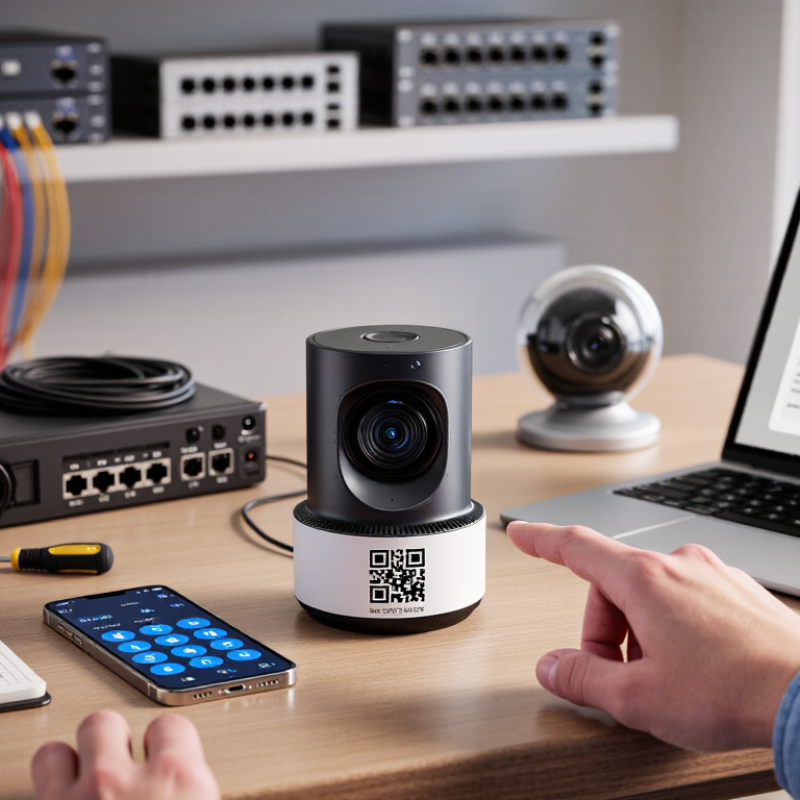
How to Reset a Security Camera Without a Reset Button in 2026?
Identify the camera’s reset method before disconnecting anything. Some cameras reset through an administrator menu, mobile application, web interface, or console command. Others require a power-cycle sequence, removable storage procedure, or approved firmware recovery. Check the installation guide and record the model, firmware version, and serial number. Do not guess. A wrong recovery file can make the camera unusable.
Current access status matters more than the missing button. Can an authorized administrator still sign in? Is the camera visible on the local network? Does it remain linked to a managed account? If access exists, change the administrator password and export configuration details before resetting. The 2024 Verizon Data Breach Investigations Report found that human involvement appeared in 68% of breaches. Shared passwords and forgotten accounts remain practical risks. A reset may remove settings, but it will not automatically secure every connected account. I sometimes see technicians reset too early. That can destroy useful evidence and configuration data.
Tips: Photograph the wiring and status lights. Confirm the power supply first. Isolate the camera from remote access during recovery. Use only official instructions from the equipment provider. Afterward, create a unique password, update firmware, disable unused accounts, and verify time settings. The reset method is only half the task. Access control is the real checkpoint.
How to Reset a Security Camera Without a Reset Button in 2026?
Prepare power, network, and account details before touching the camera. Record the camera’s location, serial number, power type, and current network name. If it uses Ethernet, note the switch port and confirm Power over Ethernet is active. For wireless devices, keep the router nearby and prepare the Wi-Fi password. A reset can fail when the camera loses power halfway through the process. That happened to me once.
Account access matters just as much. Confirm the administrator email, recovery method, and multifactor authentication device. Do not depend on a remembered password. Verizon’s 2025 Data Breach Investigations Report analyzed 22,052 incidents and identified credential abuse as a leading initial access method. Use the camera’s official web portal or mobile application to locate a software reset option. If unavailable, disconnect power for at least 30 seconds, reconnect it, and check for a hidden reset sequence in the setup instructions. Never insert random tools into vents or ports. The FBI’s 2024 Internet Crime Report recorded 193,407 phishing complaints, so avoid reset links received through unexpected messages. After restoring access, create a unique password and update the firmware. I would also test live viewing, recording, alerts, and remote access separately. A reset is not complete merely because the camera appears online.
| Reset Scenario | Information and Equipment to Prepare | Typical Time | Expected Impact | Post-Reset Verification | |
|---|---|---|---|---|---|
| Temporary software freeze |
|
Shut down the camera by disconnecting its power source. Leave it disconnected for at least 30 seconds, then reconnect power and allow the camera to complete its startup sequence. | 2–5 minutes |
Low Usually preserves network settings, user accounts, and stored configuration. |
Confirm that the status light or infrared illuminator behaves normally, the live view loads, and the correct date and time are displayed. |
| Camera is not reachable on the local network |
|
Restart the camera and network equipment in sequence. Check the router's connected-device list, confirm that the camera receives an IP address, and reconnect it using the camera's authorized setup page or management application. | 5–15 minutes |
Low Network settings may remain unchanged; a new IP address may be assigned by DHCP. |
Test live video, confirm two-way audio if supported, and verify that the camera is accessible from an authorized device on the same network. |
| Forgotten wireless network details |
|
Open the camera's authorized configuration interface while connected locally. Remove the old wireless profile, enter the current network name and password, save the change, and wait for the camera to reconnect. | 5–10 minutes |
Medium The camera may go offline briefly while the wireless profile is replaced. |
Confirm the new IP address, reconnect to live view, and check that scheduled recording and notifications resume. |
| Administrator password is known |
|
Sign in to the camera's local web interface or authorized management application. Use the maintenance, system, or device-management section to select the software factory-reset option, then confirm the operation. | 5–15 minutes |
High Network settings, schedules, users, alerts, and image preferences may be erased. |
Complete the initial setup, create a strong unique administrator password, apply current network settings, and verify the camera clock and recording behavior. |
| Administrator password is forgotten |
|
Use the authorized password-recovery process from the camera's sign-in page. After identity verification, create a new administrator password and use the maintenance menu to perform a software reset if necessary. | 10–30 minutes |
Medium Account access may be restored without deleting settings; a separate factory reset can remove configuration. |
Sign in with the new credentials, review all authorized users, revoke unknown sessions, and confirm that remote access is enabled only for trusted accounts. |
| Camera is linked to an old account |
|
Remove or unpair the camera from the existing authorized account before adding it to another account. If the old account is inaccessible, complete account recovery or follow the device's ownership-transfer procedure. | 10–20 minutes |
Medium Remote viewing and notifications may stop until the camera is linked again. |
Confirm that the previous account no longer has access, pair the camera with the intended account, and test live view and alerts. |
| Remote reset through a management platform |
|
Open the device-management dashboard, select the correct camera, and choose the available restart, reset configuration, or restore-defaults command. Review the warning before confirming. | 5–20 minutes |
Medium A restart normally preserves settings; restore-defaults commands can erase most configuration data. |
Wait for the device to reconnect, confirm its status as online, and verify video, storage, time synchronization, and notification settings. |
| PoE-powered camera has stopped responding |
|
Disable power to the camera's network port, wait at least 30 seconds, and enable the port again. If needed, move the camera temporarily to a verified port and inspect the cable for damage. | 3–10 minutes |
Low This normally performs a power cycle rather than deleting configuration. |
Check that the port negotiates a network link, the camera receives power, and the live stream becomes available. |
| Storage or recording settings need to be cleared |
|
Back up important recordings first. Use the authorized storage-management menu to format or clear the camera's storage, rather than deleting unrelated network or account settings. | 5–30 minutes |
High Stored recordings may be permanently deleted and cannot normally be recovered after formatting. |
Record a short test clip, confirm playback, verify the retention period, and check that overwrite behavior matches the required policy. |
| Complete factory restoration without a reset button |
|
Use the authorized software restore-defaults function. If no software reset is available, consult the camera's official service documentation or authorized support channel rather than attempting undocumented wiring or firmware procedures. | 15–45 minutes |
High The camera may return to its initial setup state, removing users, network details, schedules, alerts, and local preferences. |
Reconfigure the camera, update its firmware through an authorized channel, set a unique administrator password, enable secure access, and test every required function. |
A missing reset button does not mean the camera is unusable. Many current cameras place reset controls inside their mobile app. Open the device page, select Settings, then choose Device Maintenance or Restore Factory Settings. Confirm the warning. Save important recordings first, because a factory reset can erase local configuration and stored clips.
If the app cannot connect, try the camera’s web panel. Find its local IP address in your router’s device list. Enter that address in a browser, then sign in with authorized credentials. Look under Administration, System, or Maintenance. The labels vary. That is inconvenient. Do not guess passwords repeatedly, or the account may lock temporarily.
Companion desktop software can provide another route. Connect the camera and computer to the same network, then check for firmware recovery or device removal tools. IoT Analytics reported 18.8 billion connected IoT devices in 2024, with 21.1 billion expected in 2025. More devices create more reset paths, but also more confusion. Verizon’s 2024 Data Breach Investigations Report analyzed 30,458 incidents and 10,626 breaches. Therefore, change the administrator password after resetting, enable multi-factor authentication, and update firmware from the official support portal. Document the new network settings. A forgotten note can become tomorrow’s problem.
How to Reset a Security Camera Without a Reset Button in 2026?
When remote access is unavailable, begin with a controlled power cycle. Disconnect the power cable or Ethernet cable if the camera uses PoE. Wait at least 60 seconds, then reconnect it and watch the status light. Some models restore a temporary local setup address after restarting. Check the router’s client list from an authorized computer, then open the camera’s local configuration page. Record the current network settings before changing anything.
Tips: Keep the camera on a separate test network. Do not guess hidden button combinations or short internal contacts. Those actions can damage the circuit board and may erase useful evidence. If the device stores settings on a removable card, remove it only after powering down completely. A recovery utility or approved firmware package may restore access, but download it from the manufacturer’s official support channel. Confirm the model and hardware revision first.
If local access still fails, check for a documented recovery mode using the power sequence or maintenance cable. Follow the exact timing; a few seconds can matter. Contact authorized support with the serial number and proof of ownership. A factory reset may remove recordings, certificates, and network rules. I would treat that as a final step, not a shortcut. In practice, I have seen rushed resets create more work because the original IP address was never recorded.
When remote access is unavailable and the camera has no visible reset button, recovery usually depends on local access, network availability, administrator credentials, or a saved configuration file. The chart shows which requirements are typically needed for each recovery path.
If a security camera has no visible reset button, disconnect its power carefully. Wait at least one minute before reconnecting it. Some models reset through their mobile app, web dashboard, or a small recessed control near the cable. Check the official manual for the exact method. Do not guess the wiring. I once overlooked a hidden control beneath the mounting plate, which delayed the setup.
After the reset, reconnect the camera to a secure network using the original setup process. Use a strong, unique password and update the camera’s firmware when available. Reconfigure motion zones, recording schedules, time settings, and notification rules. Keep the camera near the router during pairing. A weak signal can make a successful reset appear unsuccessful. If the camera uses local storage, confirm that the card is detected before enabling recording again.
Tips: Keep the network name and password nearby. Test live video from another device. Walk through each detection zone slowly. Check whether alerts arrive at the correct time. Review night footage too. It may look different after reconfiguration. Verify the camera’s date, privacy settings, and storage status. If the device still fails, repeat the process once, then consult the manufacturer’s documented support channel. My earlier mistake was changing several settings together, making the real problem difficult to identify. One change at a time works better.
Record its location, serial number, power type, and current network name. Keep the Wi-Fi password nearby.
Check the official app, web dashboard, and setup manual for a software reset option.
Disconnect power carefully, then wait at least one minute before reconnecting it.
Place the camera near the router during pairing. A weak signal can make success look like failure.
Reconfigure motion zones, recording schedules, time settings, and notification rules.
Test live video from another device. Walk slowly through every detection zone.
Confirm that the storage card appears in the camera’s settings before enabling recording.
Repeat the process once, following the documented instructions exactly.
How to reset a security camera without a reset button? The process usually depends on the camera’s available access methods rather than a physical control. First, determine whether the camera can be managed through a mobile app, browser-based web panel, desktop utility, or connected recorder. Before starting, gather the power supply, network information, login credentials, and any account details needed to reconnect the device. A stable connection and sufficient power can help prevent interruptions during recovery.
If remote access is available, use the camera’s software to locate its reset, restore, or device-management option and follow the on-screen instructions. When normal access is unavailable, try approved recovery options such as reconnecting through the local network, using a companion program, or consulting the device’s official documentation for a recovery procedure. Afterward, reconnect the camera, create new secure settings, update its network configuration, and verify the live view, recording, alerts, and account access to confirm that the reset was completed successfully.

AxizView Camera